Tiger Touch for Bambu Lab 3D printers
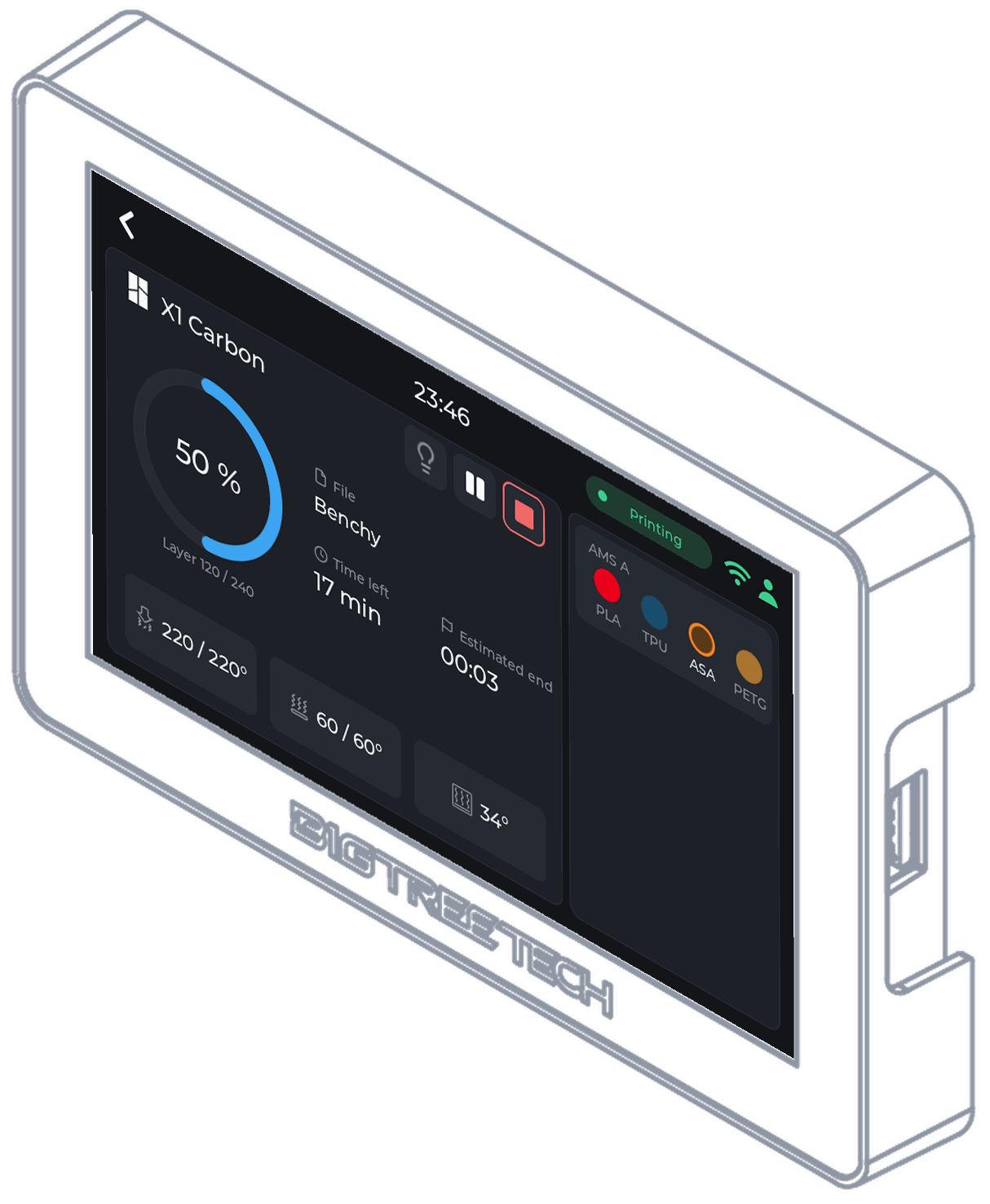
Tiger Touch turns a BIGTREETECH Panda Touch or K-Touch into a live screen for your Bambu Lab printers: progress, layers, time left, temperatures and every AMS slot, through the Bambu cloud or in LAN mode.
- Models
- X1 Carbon, X1E, P1S, P1P, P2S, A1, A1 mini, H2D, H2C, H2S, X2D
- Connection
- Bambu cloud (MQTT over TLS to Bambu's region broker, with the session Tiger Studio Manager stored in your account), or LAN mode (MQTT over TLS to the printer, port 8883, with its access code).
- Tested
- Seen on real printers: a full print on a P2S through the cloud; an X1 Carbon and an A1 in LAN mode.
Install Tiger Touch from your browser Source on GitHub
Want the original firmware back one day? It can be reinstalled at any time: how to go back
You dreamed of it. The TigerSquad built it.
Tiger Touch, Tiger Studio, TigerScale, TigerSpool, TigerPOD: free tools made by a community of makers, for every brand of printer.
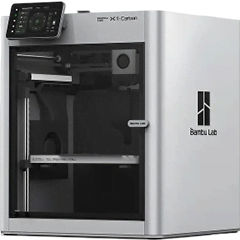 X1 Carbon
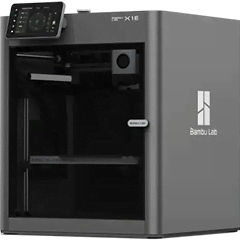 X1E
X1E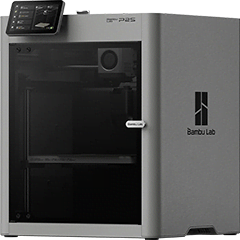 P2S
P2S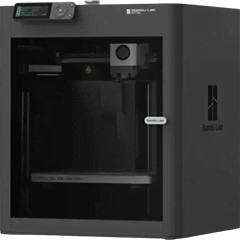 P1S
P1S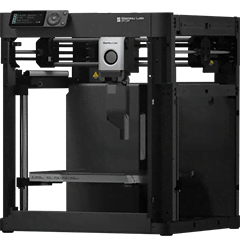 P1P
P1P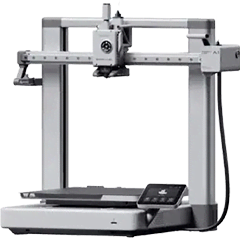 A1
A1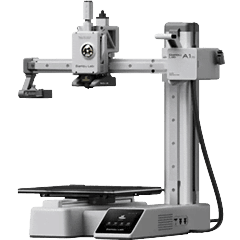 A1 mini
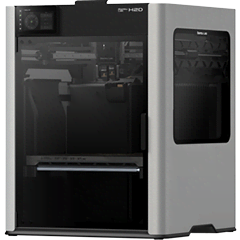 H2D
H2D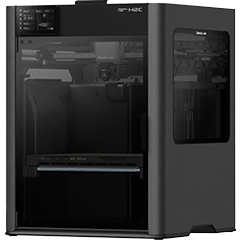 H2C
H2C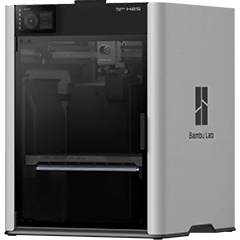 H2S
H2S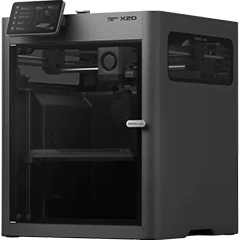 X2D
X2D
What you need
- A BIGTREETECH Panda Touch or K-Touch, the 5-inch touchscreen, sold separately: maybe the one already in your drawer. The K-Touch is the same board with another BIGTREETECH firmware: Tiger Touch replaces either.
- For the first installation only: Chrome or Edge on a computer and a USB-C data cable. Nothing stays plugged in afterwards.
- Your printer on the same Wi-Fi network as the screen (or its maker's cloud, where the page above says so).
- A free TigerSystem account, with the printer added in Tiger Studio Manager, the desktop app (Windows, macOS, Linux).
What the screen shows for a Bambu Lab 3D printer
- Progress, current and total layers, time left and the estimated end
- Nozzle, bed and chamber temperatures (the A1, A1 mini, P1P and P1S have no chamber sensor: shown as --)
- Every AMS and AMS HT unit with its slots, material and colour, the slot in use ringed, and the external spool
- Both nozzles of an H2D, H2C or X2D, the active one marked
Pause, stop and the light
The chamber light switches from the screen, through the cloud as on the local network. Pause, resume and stop work in LAN mode only: the Bambu cloud takes no such command from a third-party session, so the buttons stay dimmed there.
Set it up in three steps
- Add the printer in Tiger Studio Manager (desktop app), signed in to your Bambu account or with LAN mode on the printer.
- For LAN mode, keep the access code and the address Tiger Studio found: Tiger Touch reads them from your TigerSystem account.
- Flash Tiger Touch from the installer, sign in with the same TigerSystem account, and switch the printer on in Settings > Printers.
Tip. A Bambu printer in LAN mode streams its full reports continuously: give the screen a good Wi-Fi signal. A printer allows only a few local clients at a time.
Bambu Lab questions
Does it need the Bambu cloud?
No. It works through the Bambu cloud or in LAN mode; each printer uses the connection Tiger Studio Manager set up for it.
Can I pause or stop a Bambu print from the screen?
In LAN mode, yes: stop asks for a confirmation first. Through the Bambu cloud the buttons are shown but dimmed, because the cloud does not accept these commands from a third-party session.
Does it show the AMS?
Yes: every AMS and AMS HT unit with its four slots (one for the HT), the material, the colour and the slot in use, plus the external spool.
The same screen, every brand
Tiger Touch follows every printer of your TigerSystem account on one screen, whatever the brand, each through its maker's own connection:
- Creality On your network, the CFS, the light, pause and stop
- Elegoo Centauri Carbon 1 and 2 on your network, the Canvas
- Anycubic Anycubic cloud or your network, every ACE slot
- Snapmaker The U1 on your network, its four tool heads
- FlashForge On your network, the AD5X material station
- Prusa PrusaLink on your network: progress and temperatures
- Klipper Moonraker: Voron, Qidi, Sovol, AFC and Happy Hare
- OctoPrint Any Marlin printer behind OctoPrint
What Tiger Touch is
A free, open-source firmware that turns the BIGTREETECH Panda Touch or K-Touch, a 5-inch touchscreen made for Bambu Lab, into one live screen for all your 3D printers. No computer left on and no bridge: it signs in to your TigerSystem account, reads your printers from it and talks to each one directly.
Built around makers, not around a brand
Printer makers build their software around their own machines: their apps, their clouds and their screens are designed to keep you with their printers. TigerSystem starts from the other end: you. Whatever printers you own, whatever their brand, whatever computer or phone you use, our tools adapt to the way you work, not the other way round. A Bambu Lab printer today, another brand tomorrow: the same screen follows both.
Every brand on one screen
Bambu Lab, Creality, Elegoo, Anycubic, Snapmaker, FlashForge, Prusa, Klipper and OctoPrint, up to ten printers live at once.
Nothing to type
Your printers come from your TigerSystem account, with their addresses and access codes, as Tiger Studio Manager added them.
Install from your browser
Plug the screen in, press Install in Chrome or Edge: a few minutes, no tools, no soldering.
Updates over Wi-Fi
The screen finds new versions by itself and asks; each one is checked before it is used.
Live view in Tiger Studio
Tiger Studio Manager shows the screen live, touches it and takes screenshots for a bug report or a post.
Free and open source
MIT licence, no subscription, eleven languages, made by the TigerSquad community.
The rest of the TigerSystem family
Tiger Touch is one of TigerSystem's free tools. The others share the same account, the same spools and the same printers:
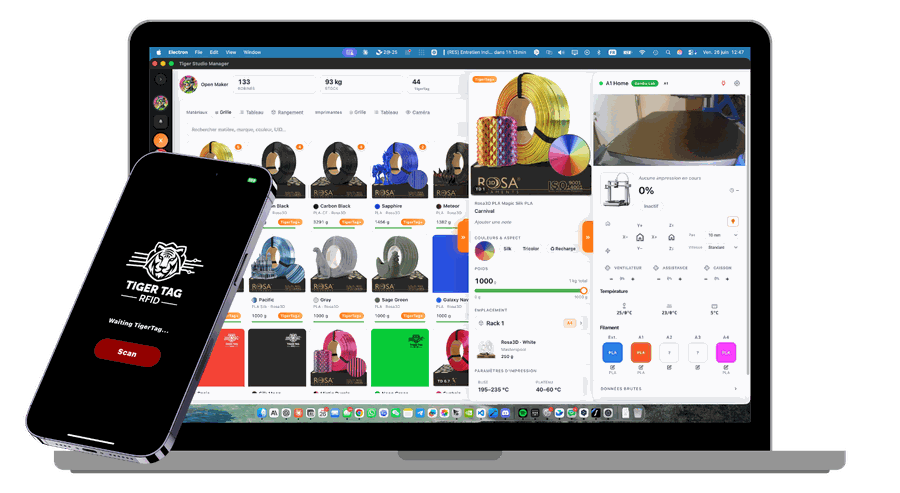
Tiger Studio Manager
Mission control for your filament and your printers, on Windows, macOS and Linux. Start here: your account and your printers are set up there.
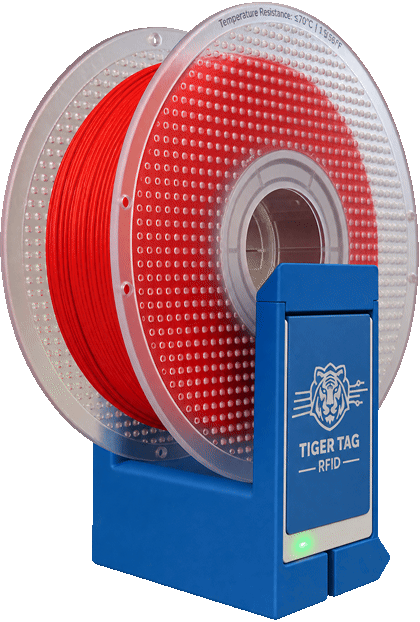
TigerPOD Mini
A spool scanner for your desk that you print yourself: put a spool down and it opens in Tiger Studio.
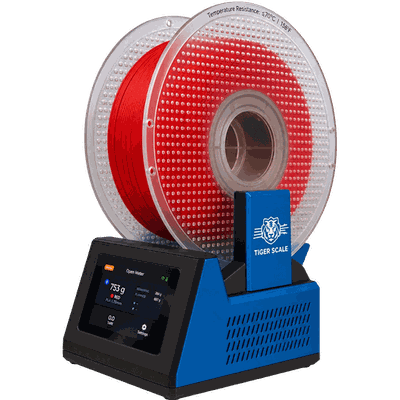
TigerScale V3
An open-source scale: the chip says what the spool is, the load cell how many grams are left.
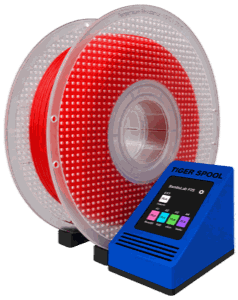
TigerSpool
A small box beside the printer: hold a spool against it and the filament is written into the printer's slot.